How to Add a Loved One to a Photo with AI (Free Preview)
The fastest way to add a loved one to a photo is to upload two pictures to Try a Trend, one of you and one of the person you miss: you pick how you stand together, the background and the look, see a free preview of the two of you in one natural photo, and download a print-size file in about a minute.
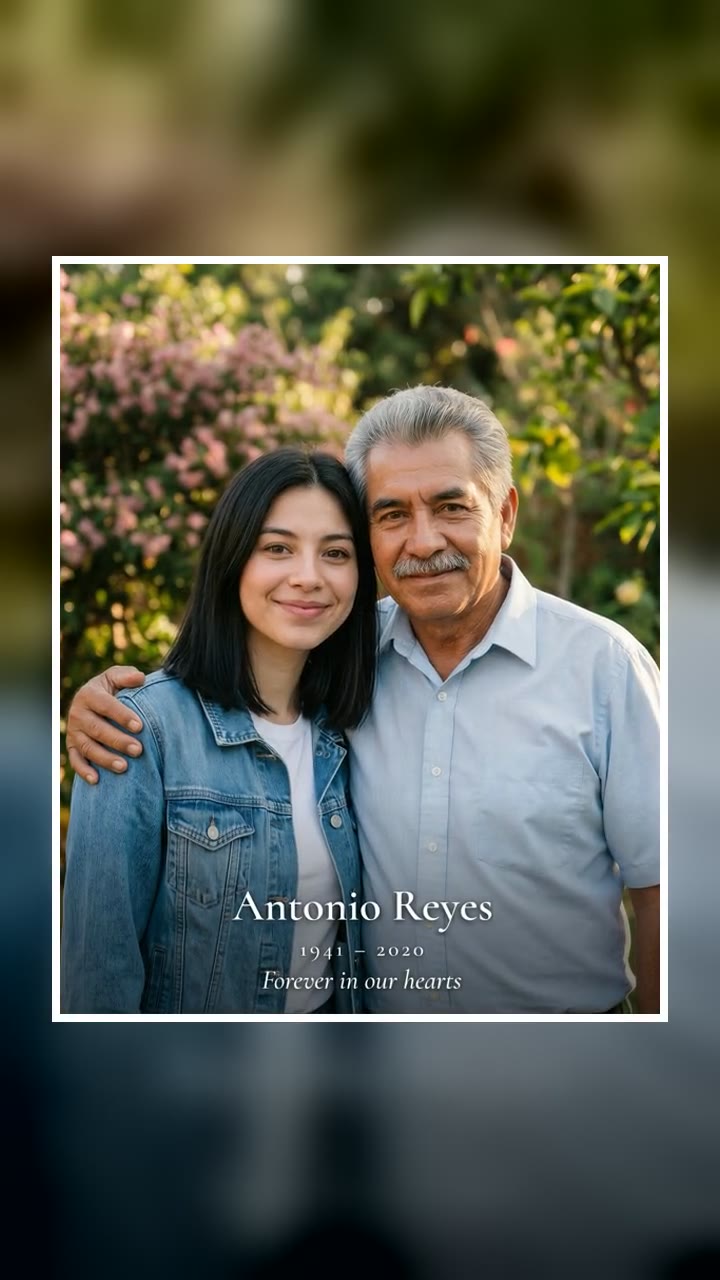
Add Loved One to Photo AI Generator
2 photos, a high-resolution photo you can print, free preview before you pay. Each photo is $9.99.
What is the Add Loved One to Photo trend?
It isn't a dance or a sound. It's one of the oldest requests in photo editing: "I never got a picture with my dad, can someone put him in this one?" For years it lived in Facebook editing groups, where people post two photos and ask volunteers for help, and on Etsy, where memorial shops sell the same thing as a digital file. Some of those shops have tens of thousands of sales, and new reviews keep arriving every week, especially around Mother's Day, Father's Day, the Day of the Dead, Christmas and the anniversary of a death.
The photos people send are rarely good. Often the only picture of a grandparent is a small print from decades ago, a scan of a faded color photo or a black-and-white portrait. The person asking usually has a recent phone selfie. The job is to make those two pictures look like one moment.
People order these for many reasons: a wedding where a parent was missing, a graduation, a new baby the grandparents never met, a frame for a birthday, or simply one more picture together. Some make it for family who are alive but live far away.
What a good result looks like
When it works, nobody looking at it thinks about editing. These are the details that make the difference:
- Light from one direction. Both faces are lit from the same side, with shadows falling the same way and the same warmth on the skin.
- Real scale. A parent isn't suddenly a head shorter or a head bigger than their child, and both people sit in the same plane of focus.
- Touch. An arm around a shoulder or a hug with fabric that actually presses and overlaps, instead of two cut-outs standing next to each other.
- Faces that stay themselves. The wrinkles, the moustache, the glasses and the hairline from the original photo, not a smoothed-out stranger.
- Clean color. An old black-and-white photo turned into natural color, or the whole picture finished in black and white so both people match.
The most common complaints about hand-made versions are the opposite: one person looks like a sticker, the light doesn't match, or changes take days of emails.
Three ways to add a loved one to a photo
1. Hire a photo editor
Search for "add loved one to photo" on Etsy or Fiverr and you'll find many sellers who do this by hand in Photoshop. You send your photos, describe what you want, and receive a file in one to four days. Facebook editing groups will sometimes do it for free.
Good: a real person reads your request, and many sellers offer changes until you're happy.
Not so good: you wait, you go back and forth by message, and results vary a lot from seller to seller. Free groups can't promise when or whether anyone will pick up your request.
Best for: complicated jobs, like adding several people into a large family photo.
2. A general AI image app
Chat apps with image tools can combine two pictures if you describe the result well. Upload both photos and ask for one photo of the two people standing together.
Good: fast, and often included in a plan you already have.
Not so good: you write and rewrite the prompt yourself, and it often takes several tries before both faces look right. Files are usually small for printing, and if you ask for a name on the picture, the spelling and accents often come out wrong.
Best for: people who enjoy writing prompts and only need a picture for the phone.
3. Try a Trend
Try a Trend is an independent AI tool, not affiliated with Etsy or any photo studio. The scene, the lighting rules and the face matching are already set up, so you only choose from a few options:
- 1Upload a clear photo of you, then one of your loved one; an old, scanned or black-and-white photo is fine if the face is sharp.
- 2Pick how you stand together, the background and the look, and add their name and dates if you like.
- 3Confirm the photos are of you and your family member. If anyone in a photo is under 18, confirm you're their parent or legal guardian.
- 4Check your free preview. If you like it, get the full-resolution photo.
- 5Download your high-resolution photo in about a minute, then print it, frame it or share it.
You see a free, watermarked preview before you pay, and you can change the pose, background or look and try again. Each photo is $9.99. The download is a high-resolution JPG with no watermark, sharp enough to print at 8 × 10 inches, and you can redo it once for free if the first one isn't right.
Best for: anyone who wants a print-ready photo today without writing a prompt or waiting on messages.
Choosing the photos
The result can only be as good as the faces it starts from.
- Use a clear face for each person. Waist up or chest up works best. One person per photo: crop out anyone else first.
- Old prints are fine. Lay the print flat near a window, turn off the flash and photograph it straight on, so there's no glare across the face. A sharp small photo beats a blurry large one.
- Black-and-white works too. You can keep the final picture in black and white, or let it come out in natural color.
- Your own photo sets the scene if you pick My photo's background, so choose one taken somewhere that matters to you, with good light.
- Avoid heavy filters and screenshots of screenshots; they blur the details that make a face recognizable.
Picking the look
- Pose: side by side is the most formal, arm around the shoulder feels like a family snapshot, a hug is the most emotional, and holding hands suits couples and parents with grown children.
- Background: keep your own photo's place, choose a soft studio backdrop for a funeral board or a frame, a warm golden garden, or heavenly light and clouds.
- Look: natural color, classic black and white, a warm vintage print, or soft angel wings behind your loved one. Wings only appear if you choose them.
Adding a name, dates and a few words
Open Add words to put their name, their years and a short line at the bottom of the picture, for example "Forever in our hearts" or "Siempre en nuestro corazón". The words are set by us in an elegant serif font after the image is made, not drawn by the AI, so accents and spelling stay exactly as you typed them. Keep the line short: one sentence reads best on a print.
Printing and sharing
The file is a 4:5 portrait, the same shape as an 8 × 10 print, so it fits a standard frame without cropping. For a 5 × 7 or a 4 × 6 print, the photo kiosk will trim a little from the top and bottom. Matte paper hides small imperfections better than glossy. Download the file soon after it's ready: photos and results are deleted after 72 hours for privacy.
Many people post the picture on the anniversary of a death or on a birthday with a few words about what they miss. If you'd like to see them move, the result page also offers a short video of the two of you hugging, made from the same photos.
Ready to try it? Add your loved one to a photo and see the free preview first.