How to Make an AI Video From a Photo (Online, No Sign-Up)
To make an AI video from a photo without installing anything, upload the photo to a browser-based AI video tool and either describe what should happen or pick a ready-made scene: on Try a Trend you pick a viral trend, upload one photo with no account, see a free preview still of yourself in the scene, and pay only if you want the finished video.
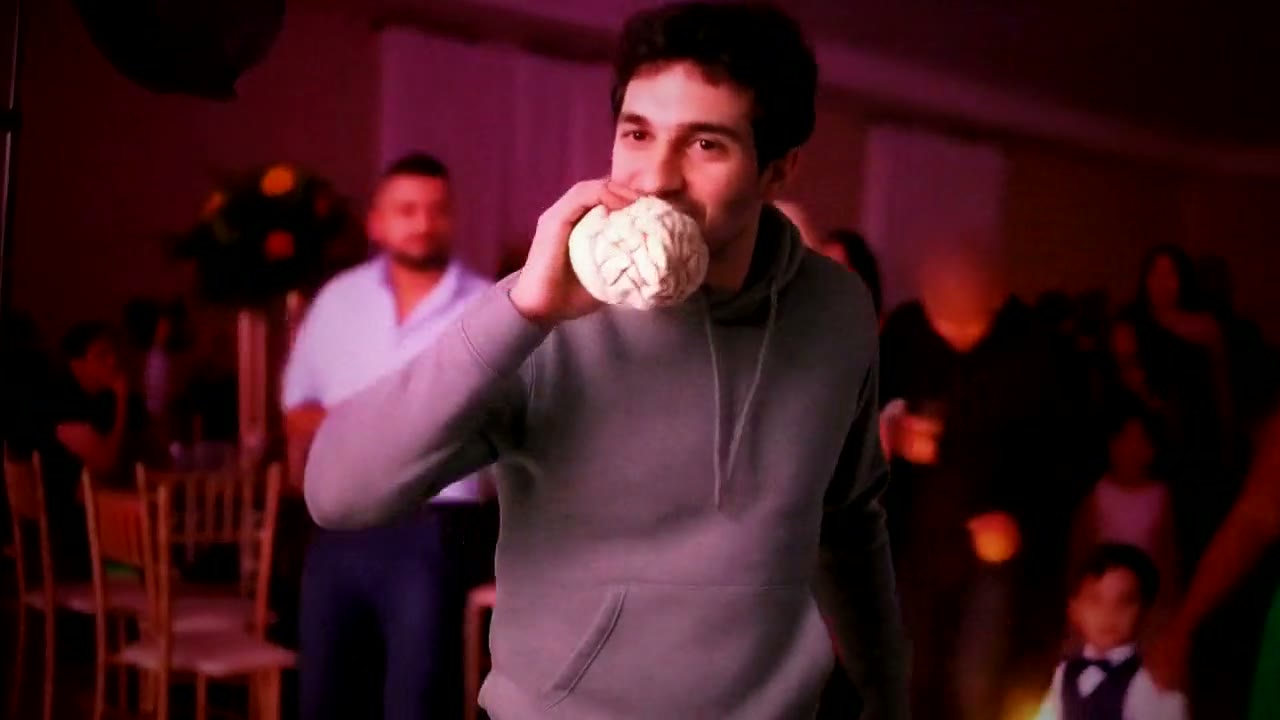
Dime Dime Baby AI Video Generator
$4.99 for your first video, then $5.99 each, free preview first
Make yours
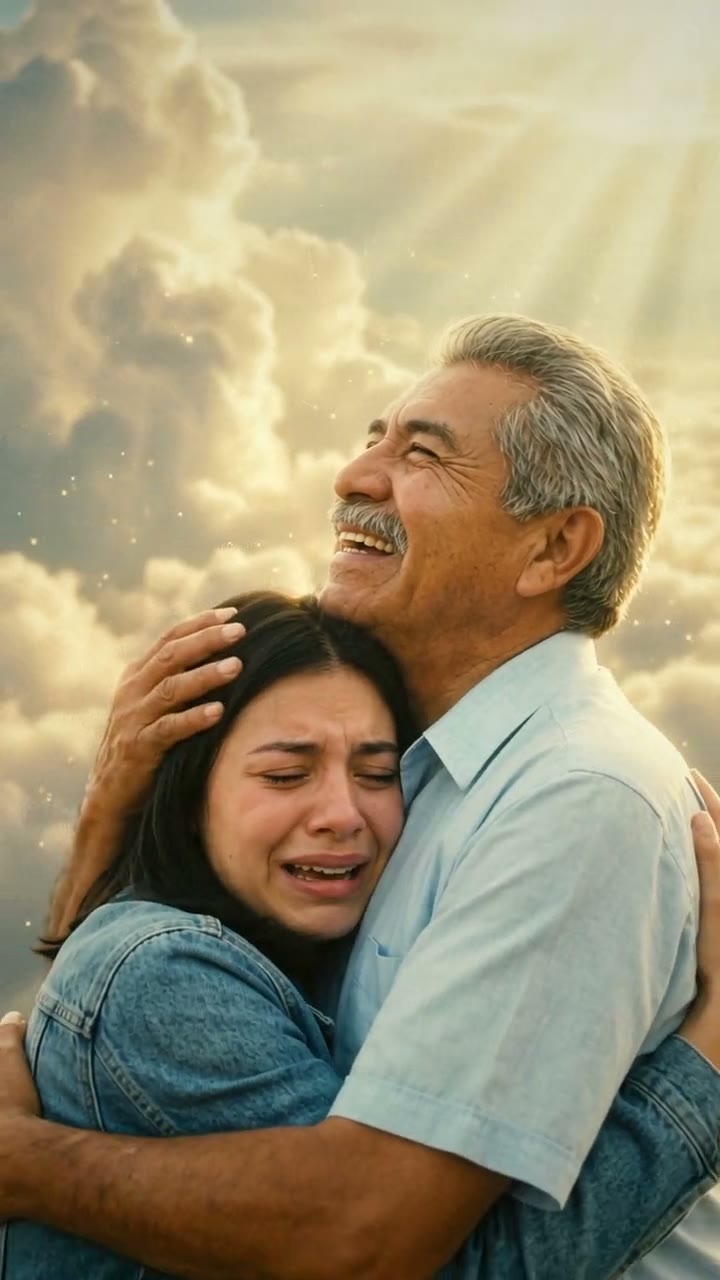
Mom & Dad in Heaven AI Video Generator
$7.99 per video, free preview first
Make yours
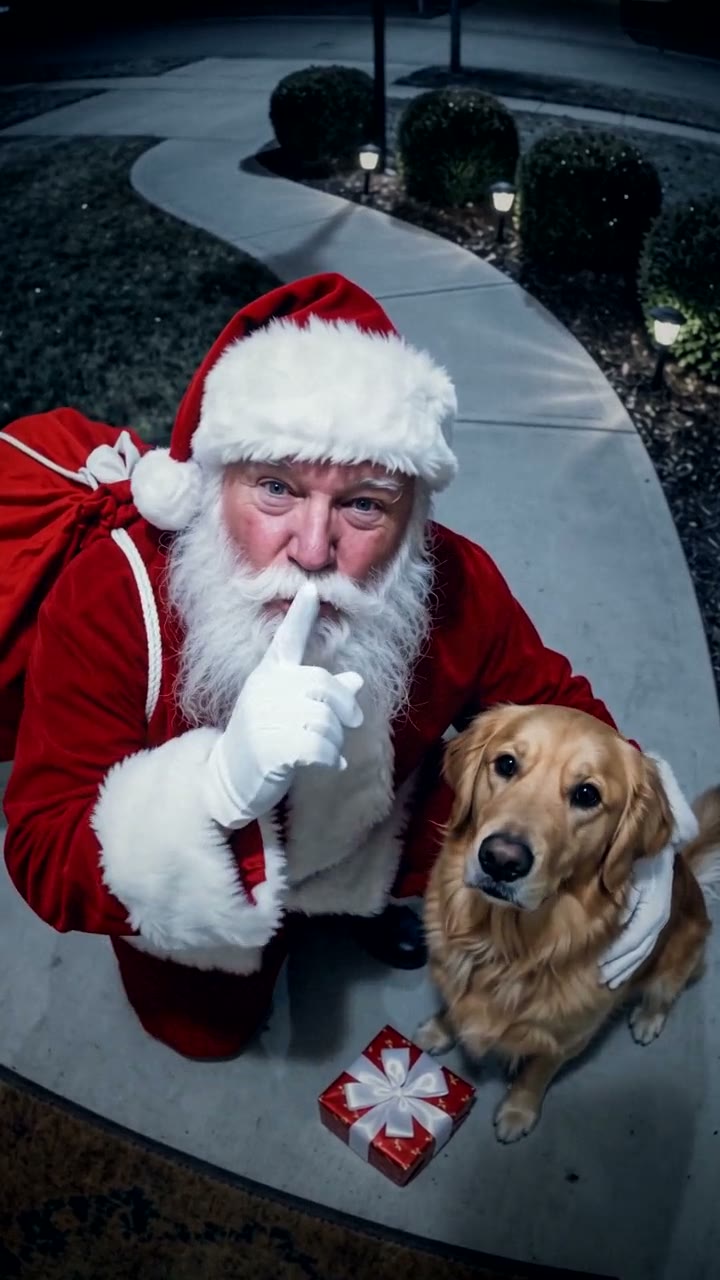
Santa in Your House AI Video Generator
$7.99 per video, free preview first
Make yours
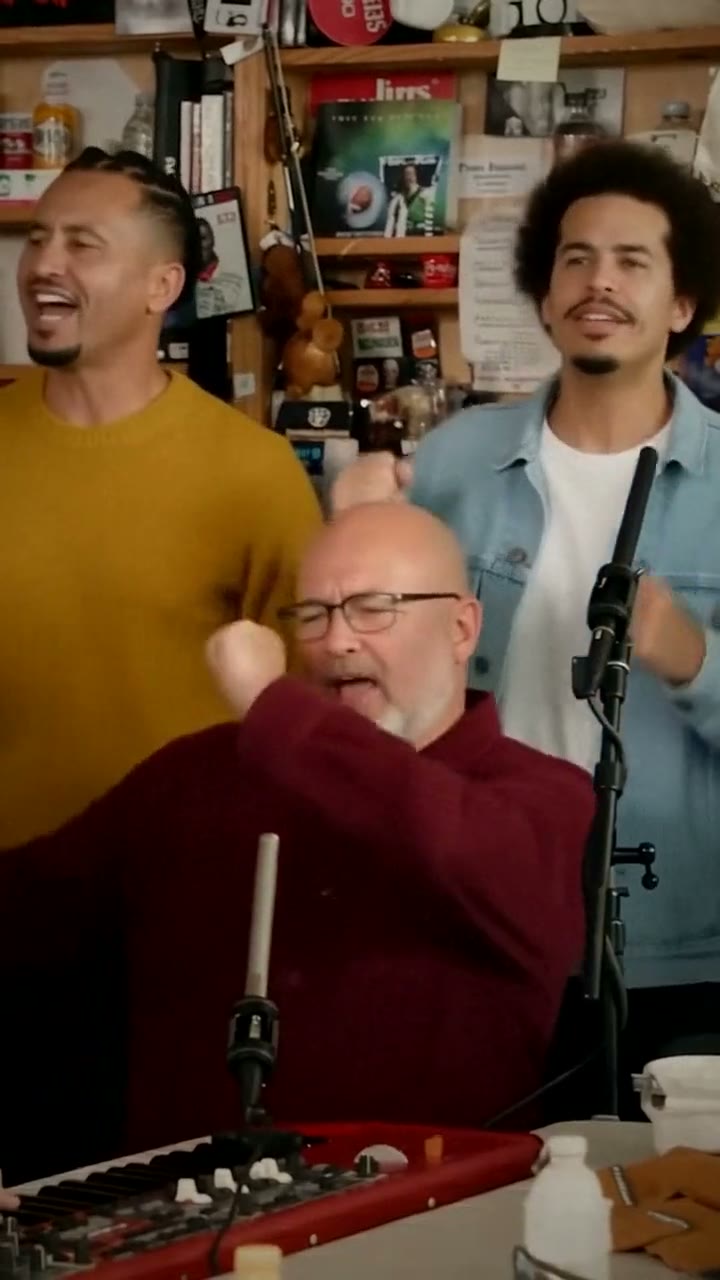
Tiny Desk AI Video Generator
$7.99 per video, free preview first
Make yours
Two ways photo-to-video AI works
There are two different kinds of tool behind "turn a photo into a video", and they suit different people.
Image-to-video. Your photo becomes the first frame and the AI imagines what happens next from a text prompt: "she smiles and turns to the camera", "slow zoom in, hair blowing in the wind". General tools like Kling, Runway, Pika, PixVerse and Adobe Firefly all work this way, and most of them run in a web browser.
Ready-made scenes. The scene, the camera moves and the timing are already built, usually to copy a viral trend, and the AI puts the person from your photo into it. You don't write anything. Try a Trend works this way, and so do CapCut templates in a simpler form.
If you want a specific look that already exists, like a TikTok trend, a ready-made scene gets you there in one try. If you want something new, image-to-video gives you more freedom.
Step by step: make an AI video from a photo in your browser
- Pick the photo. A sharp, front-facing photo in good light, one person, eyes visible. A plain background helps. The original file is better than a screenshot.
- Choose the tool. For a trend, open the trend's page. For your own idea, open an image-to-video tool's website.
- Set the scene. On a trend page you just upload the photo. In an image-to-video tool, upload the photo and write what should happen: who moves, how the camera moves, and the mood and light.
- Check the face before you commit. On Try a Trend the free preview shows you in the scene before you pay. In a general tool, generate a short clip first and look at the face in motion.
- Download and add sound. Most AI videos come out silent. Add music or the trending sound inside TikTok or Instagram, where it's licensed.
Your options, compared
| Option | What you do | What's free | Best for |
|---|---|---|---|
| Image-to-video tool | Upload a photo and write a prompt | Usually a few credits after you create an account | Any scene you can describe |
| CapCut template | Swap your photo into someone's template | Many templates | Copying one template exactly |
| Try a Trend | Pick a trend and upload one photo | A preview still, with no account | Viral trends with your own face |
Free tiers of general tools commonly add a watermark, limit the resolution or make you wait in a queue, and most ask you to sign in before you generate anything. That's fair for a tool you'll use every week, but it's a lot of setup for one video.
Why the photo matters more than the tool
Every tool starts from your photo, so a better photo beats a better app.
- Light: daylight or a window. Avoid harsh sun, strong flash and dark rooms.
- Angle: face the camera or turn slightly. Profile shots make it harder to keep your face in motion.
- Sharpness: a sharp small photo beats a blurry large one. Old prints are fine if you photograph them straight on without glare.
- No extras: skip sunglasses, beauty filters and stickers, and crop out other people.
Good first videos to try
These trends take one or two photos and give you a free preview first:
- [Dime Dime Baby](/dime-dime-baby-ai): one photo of you dancing into a quinceañera, biting a concha and staring at the camera. $4.99 for your first video, then $5.99 each.
- [Tiny Desk](/tiny-desk-ai): two friends become the singer and the sax player in a small office band. $7.99 per video.
- [Hug in heaven](/mom-dad-in-heaven-ai): your photo and an old photo of a parent you miss, meeting again above the clouds. $7.99 per video.
- [Santa in Your House](/santa-in-your-house-ai): one photo of your pet, and Santa gets caught on your home camera giving it a present. $7.99 per video.
Questions people ask
Is it really free?
The preview is free on Try a Trend: up to five a day, no account. The finished video is paid, per video, with no subscription. General AI video tools usually give you a few free credits, then sell a monthly plan or credit packs.
Can I do it on my phone?
Yes. Everything above works in your phone's browser. You upload from your camera roll and download the video back to it.
Will there be a watermark?
The free preview on Try a Trend has a small watermark; the paid video doesn't. Free plans of other tools often add one too, so check before you post.
Is Try a Trend an official TikTok tool?
No. Try a Trend is an independent AI tool, not affiliated with TikTok, CapCut or any app mentioned here. Your photos are deleted within 72 hours and never used to train AI.
Ready to try it? Pick a trend, upload one photo and look at your free preview, starting with Dime Dime Baby.